Your first part: a shelf bracket
You describe a bracket in plain words, the assistant designs it, checks it and gives you files for your slicer. You never write code. This takes about twenty minutes.
What is real here
The pictures and numbers come from a real run of the server. What you and the assistant say is paraphrased: your assistant words things its own way. Under each step, What the assistant did shows the tool calls, for the curious; you can skip them.
1. Connect it
Follow the Quick start. In Claude Code it is one line:
claude mcp add b123d-print -- uvx --from b123d-print b123d-print-mcp --workspace ~/parts
Restart Claude Code. Other apps: Connect your MCP client.
2. Tell it your printer
"Set up b123d-print for my printer."
The assistant asks a few short questions, one at a time. You answer:
"A Bambu A1, PLA, 3MF for Bambu Studio and STEP in case I edit it later. These are shelf brackets, so make them strong."
It saves that once, for every part from now on. Knowing the printer lets it check that parts fit your bed; "strong" picks the structural style.
What the assistant did
list_parts (no printer set yet), use_printer(search="bambu a1") to find the exact
profile, then save_setup(printer="bambu_lab_a1", material="pla", formats="3mf,step,png",
style="structural"). A setting you already had is never replaced without asking. From a
terminal, b123d-print setup asks the same questions.
It also offers to print a small hole coupon first, so screw holes come out the right size on your printer. You can do that later: step 7 shows why it matters.
3. Describe the part
"Design a bracket for a 120 mm deep pine shelf. It screws to the wall with two 4 mm wood screws, and the wall side should be about 110 mm tall."
Give the numbers you know (Measuring for the AI helps with that). The assistant doesn't draw anything yet. It lists every size, where it came from, and what it is guessing, and waits for you:
Size Value Where from shelf arm 115 mm your 120 mm shelf, 5 mm short of the front edge wall arm 110 mm you width 25 mm a guess thickness 6 mm strong style wall screws two 4.5 mm holes for your 4 mm screws shelf screw one 4.5 mm hole into the shelf a guess It prints lying on its side, so the shelf's weight bends it along the printed layers, where it's strongest. OK?
This is the moment to change anything. You say "yes".
4. It designs and shows you
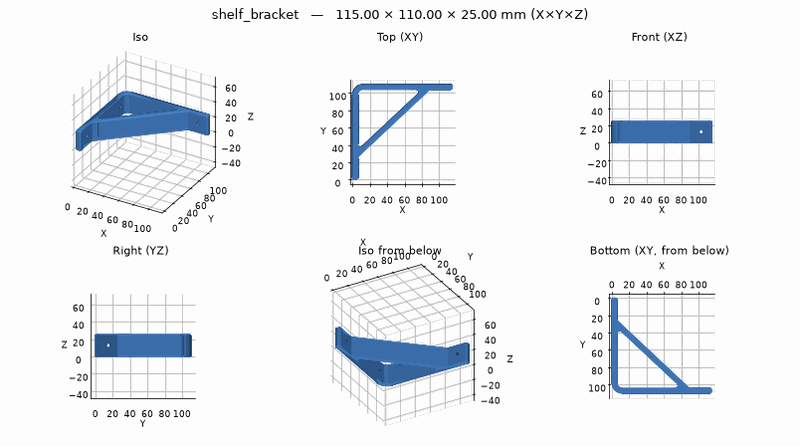
A minute later you see the bracket from six sides:
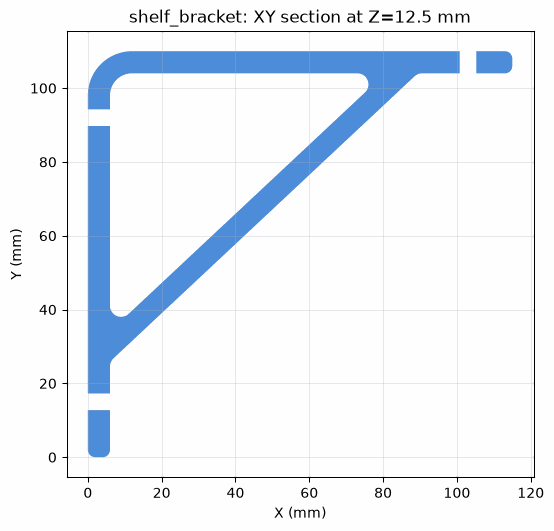
and cut through the middle, so you can see inside: the brace and the rounded inside corners,
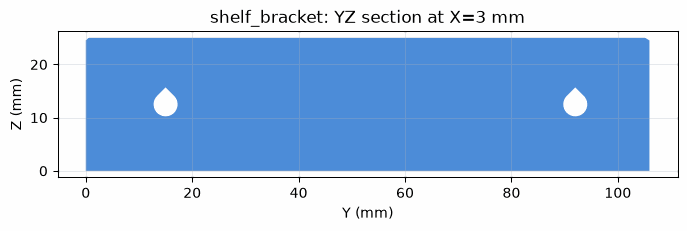
and through the wall side, where the screw holes have a pointed top. That shape prints cleanly on its side without supports:
What the assistant did
new_part and write_part to write the part's script (every size above is a named value in
it), build_part, render_preview, and two section cuts. See
the part script if you're curious what it looks like.
5. It checks it for printing
The assistant runs the printing checks and tells you the result in a sentence or two:
Everything passes: it fits your A1, nothing overhangs, no walls too thin, it won't tip over. One warning: your printer's hole size isn't calibrated yet, so the holes may come out a little small.
Because you asked for strong brackets, it also reviews the design for strength (rounded inside corners, holes far enough from the edges) and finds nothing to change. Then it checks which way up the part should print and confirms lying on its side is best: no supports, and the load runs along the layers.
What the assistant did
check, then design_metrics with the structural style ("no findings"), then
suggest_orientation(load="XY"), which ranked "as modeled" first. Every check is explained
in The checks.
6. Your files
"Make me a quick test plate for the screw holes too."
It cuts a thin 1.2 mm plate from the wall side of the bracket, with the screw holes in it. It prints in a few minutes; hold it on the wall to check the screws land where you want before printing the whole bracket (fit-test templates).
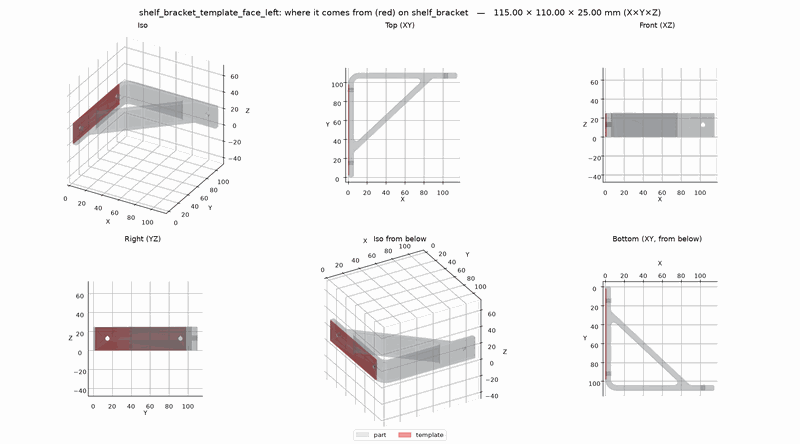
Then it exports the bracket. In your project folder, under parts/shelf_bracket/out/, you now
have:
shelf_bracket.3mf: open this in your slicershelf_bracket.step: for other CAD programsshelf_bracket_print.md: a print sheet with the settings to useshelf_bracket_view.html: open it in a browser to turn the part around- the test plate's files
Using a shared server?
If the server runs on another machine (your lab server, over HTTP or SSH), the files are made there first. The assistant brings them to your project folder before it says it's done; you don't download anything yourself. If it ever leaves them on the server, just say "bring the files home" (Get the files).
What the assistant did
make_template(kind="face", face="left"), then export(formats="3mf,step,png,print"). On a
shared server it then calls download_part, which returns a zip of the part to fetch (or,
with embed=True, the zip itself when its shell has no network), and unzips it in your
project folder.
7. Slice and print
Open shelf_bracket.3mf in Bambu Studio, OrcaSlicer or PrusaSlicer. It opens already lying the
right way: don't let the slicer auto-orient it. The print sheet says what settings this part
needs: for a strong bracket, 5 walls and 20 % gyroid infill. Print the test plate first,
then the bracket. More in From part to print.
8. "The holes are tight"
Your screws bind in the printed holes. That's the warning from step 5. Tell the assistant:
"The 4 mm screws are tight in the holes."
It suggests printing the hole coupon to measure how your printer prints holes. You print it, read off the numbers it asks for, and it saves the correction for your printer and PLA. Every part from then on, this bracket included, gets correctly sized holes. Export again and reprint.
If you'd rather just loosen this one bracket, say "make the screw holes 4.8 mm": it changes that one size and rebuilds, without redoing anything else.
What the assistant did
new_part("hole_coupon", example="hole_coupon") and export for the coupon, then
save_setup(hole_comp=..., hole_comp_h=...) with your measurements, and check(fresh=True)
to confirm the warning is gone. For a one-off change it uses
set_params("shelf_bracket", {"SCREW_D": 4.8}), which edits one value in place and can be
undone.
Next
- Remix a downloaded STL: change a model you found online.
- How a session goes: what to expect from the assistant in general.
- The bundled
shelf_bracketexample is the script behind this tutorial.